Wedding planning notes: vendor contacts, ideas and budget in one place
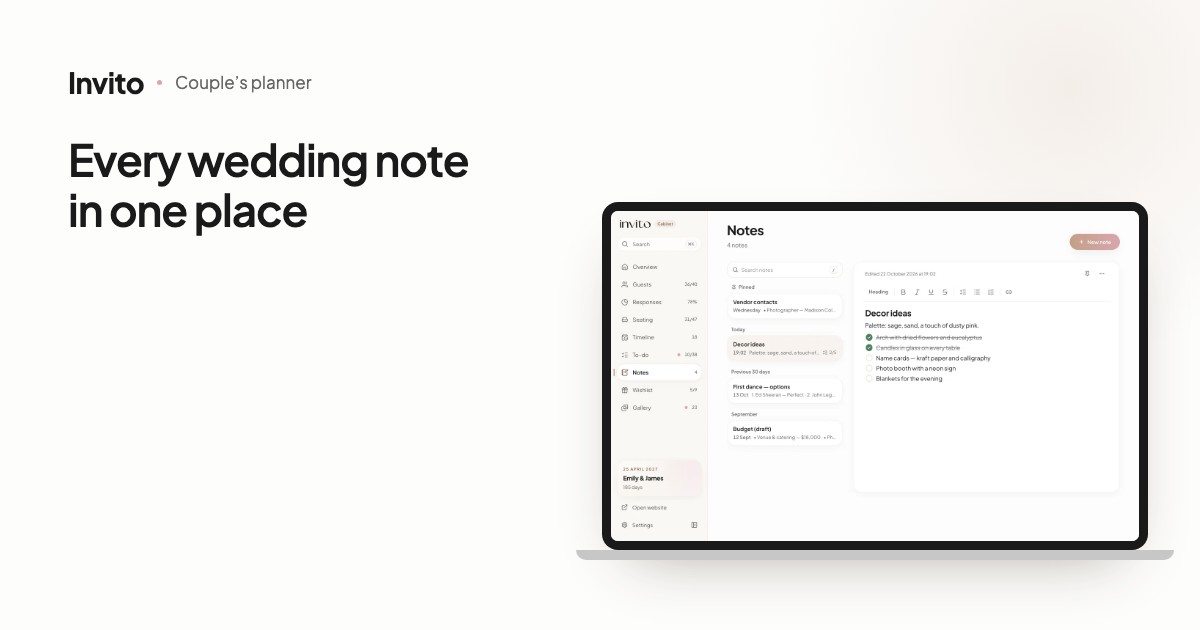
Notes is the section of the INVITO couples’ app for everything that doesn’t fit in the guest list or the to-do list: vendor contacts, decor ideas, a budget draft, a song list. It works like Apple Notes: the first line becomes the title, and you get headings, bold, italic, underline and strikethrough, bulleted and numbered lists, checklists and links. There is no Save button — notes save themselves and you see ‘Saved’. Pin important notes to the top, and search looks through the full text of every note. An empty Notes page offers three templates: vendor contacts, ideas & inspiration, and a song list.
The photographer’s number is somewhere in your chat with them. The decor ideas are screenshots. The budget draft is in the notes app of a phone that is always about to die. A few months into planning, the wedding is scattered across ten different chats.
The Notes section of the couples’ app puts all of it in one place — next to your guest list, seating plan and to-do list.
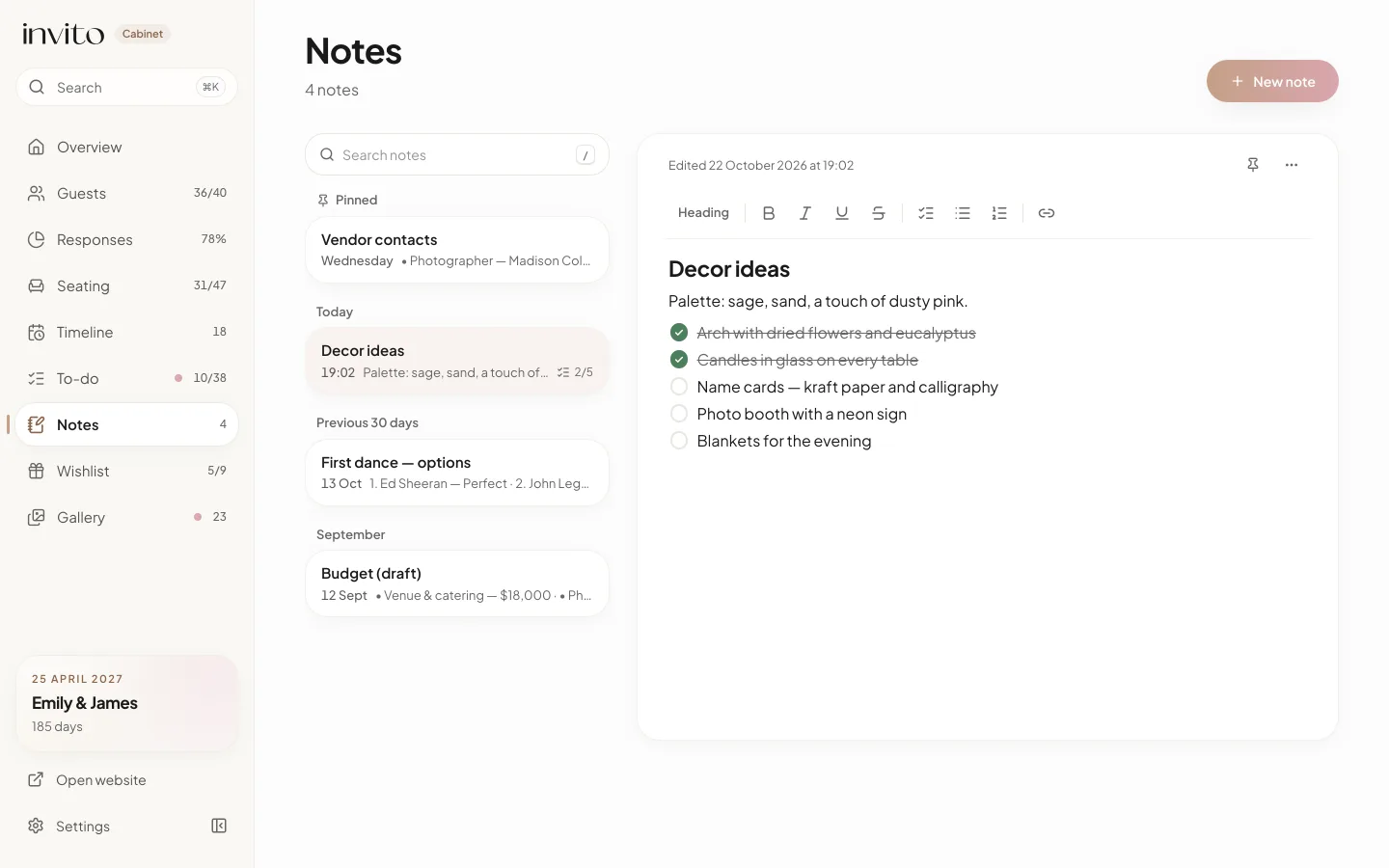
The list of notes on the left, an open note with a checklist on the right. Sample data.
How it works
- Open Notes: on a computer it’s in the sidebar (with the number of notes next to it), on a phone go to the More tab.
- Tap New note.
- Write. The first line becomes the title, just like in Apple Notes.
- Format the text with the toolbar above the note.
- Don’t save anything by hand: Saved appears under the text.
On a computer, the list and the open note sit side by side. On a phone, the note opens full screen and the back button at the top takes you to the list.
Formatting, like the notes app you know
The toolbar above the text covers what wedding notes need:
- text style — Title, Heading, Subheading or Body;
- bold, italic, underline and strikethrough;
- Bulleted list and Numbered list — for songs or the order of toasts;
- Checklist — items can be nested, and ticked ones are struck through;
- Link — paste an address and it becomes clickable; links are also picked up as you type or paste text.
In the list, each note shows the start of its text, when it was edited and, for checklists, the progress — for example 2/5. You can see how many decor ideas are done without opening the note.
Pinning, sections and search
There are no folders or tags. Order comes from three things.
Pinning. In a note, tap Pin and it moves to the top, under Pinned. That is a good home for vendor contacts, so they are always at hand.
Date sections. Everything else groups itself: Today, Previous 7 days, Previous 30 days, then one section per month. Whatever you edited last is at the top.
Search. The Search notes field looks through the full text, not just the titles. Capital letters and accents don’t matter, and you see how many notes matched. On a computer, the ‘/’ key jumps to the search field.
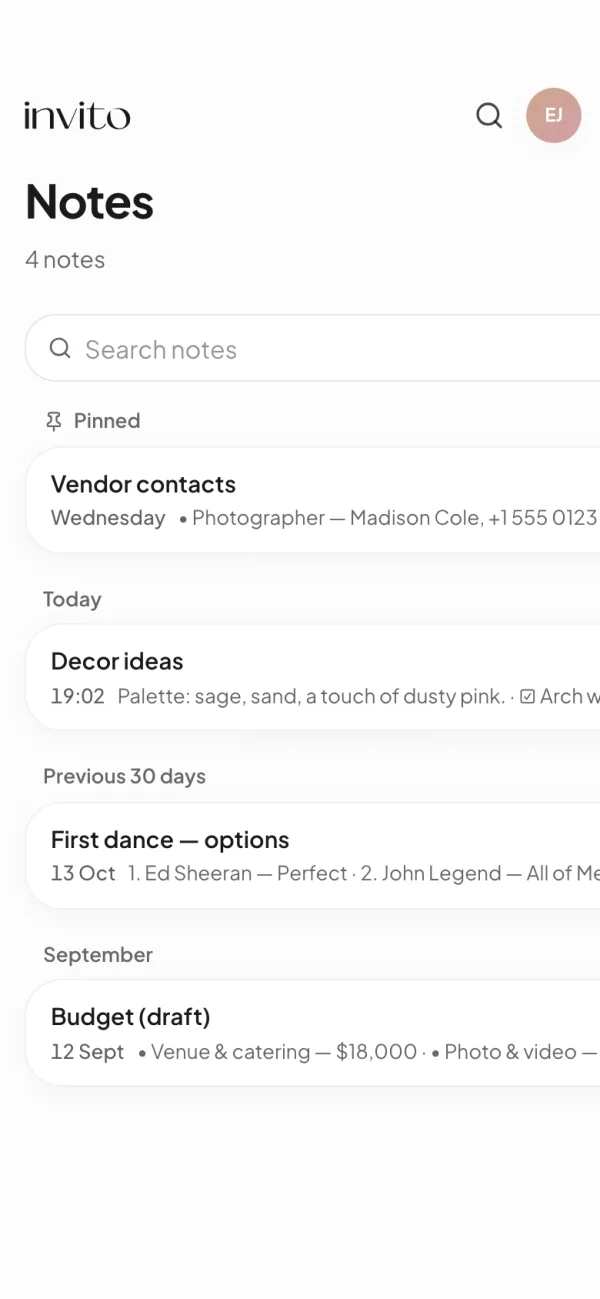
On a phone: pinned notes at the top, the rest by date of last edit.
Three templates to start with
While the section has no notes yet, you see three options under ‘Or start from a template’:
- Vendor contacts — a heading and a list: Photographer, Host, Decorator, Venue. Just add names and phone numbers.
- Ideas & inspiration — a heading and an empty checklist.
- Song list — a heading and a numbered list.
Each template is an ordinary note, so you can rewrite it however you like.
It saves itself
There is no Save button. Text is saved a moment after you stop typing, and straight away when you close the note or go to another page. Under the text you see the status: Saving…, then Saved and the date of the last edit.
If the connection drops, you see Not saved — retry: tap it and the app tries again. An empty new note doesn’t clutter the list — if you never type anything, it isn’t kept.
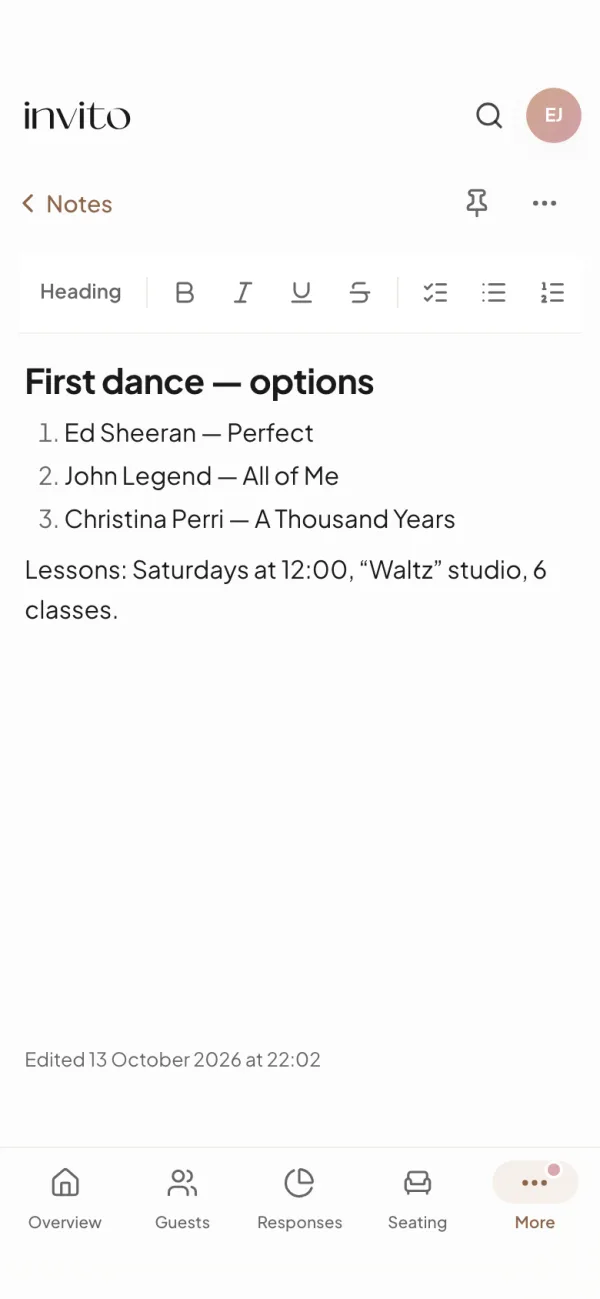
A note on a phone: the same formatting toolbar as on a computer.
The note’s menu (the three dots) has two more actions:
- Copy text — copies the note as plain text, so you can send it to your host or decorator in a messenger;
- Delete — ‘Note deleted’ appears with an Undo button, and for 6 seconds you can bring the note back.
Who sees your notes
Only you see your notes. If your order includes a wedding planner, Give your planner access appears in Settings — that is where you can open the Notes section to them. They can then view and edit all your notes; you can’t share just one. If anything in there is private, keep that access off.
Notes are saved to your account and open on any device after you sign in. Changes made on your laptop appear on your phone after you reload the page.
What it doesn’t do: photos, files or tables, folders or tags, export — a note leaves the app only through Copy text.
What it gives you
- Contacts, ideas, songs and budget in one place instead of ten chats.
- The number you need turns up in a search within seconds, even if you can’t remember which note it’s in.
- Nothing gets lost because someone forgot to press Save.
- You can send your host or decorator ready-made text without retyping it.
For more about the app as a whole, see the article about the couples’ app, and for a plan with deadlines, the article about the wedding planning checklist.
Frequently asked questions
- What can I format in a note?
- Three heading sizes (Title, Heading, Subheading), bold, italic, underline and strikethrough, bulleted and numbered lists, checklists and links. The first line of a note automatically becomes its title.
- Do I need to press Save?
- No, there is no Save button. A note saves itself a moment after you stop typing and straight away when you leave it. Under the text you see ‘Saving…’ and then ‘Saved’.
- How do I find an old note quickly?
- Use the ‘Search notes’ field: it looks through titles and the full text, and capital letters don’t matter. Pin the notes you need most — they always sit at the top under ‘Pinned’, and the rest are sorted by when you last edited them.
- Are there ready-made templates?
- Yes, an empty Notes page offers three: ‘Vendor contacts’ (photographer, host, decorator, venue), ‘Ideas & inspiration’ with a checklist, and ‘Song list’ with a numbered list.
- Can our wedding planner read our notes?
- Only if you share the Notes section with them yourself, in Settings under ‘Give your planner access’. They can then view and edit all your notes, not just one, so if anything in there is private, keep that access off.
- Will my notes open on another phone or laptop?
- Yes. Notes are saved to your account, so they are there on every device where you sign in. Changes made on another device show up after you reload the page.
Want an invitation like this?
Pick a design — we do the rest. Send us your photos and wishes, and we prepare the site, the monogram and the language versions.